
Think Bigger From Filmora User Guide
Extract Audio for Android and iPhone
Separating audio tracks from your videos allows you to customize the experience and edit your creations better. Luckily, Wondershare Filmora provides a designated extraction feature that will help you meet your needs in seconds.
Filmora for Mobile
Edit Videos on Your Mobile Phone with 1-Click!
- • Powerful Brand New AI Features.
- • User-friendly video editing for beginners.
- • Full-featured video editing for professional.


Import Media
The first step is to import your video file to the Filmora app. All you have to do is follow these steps to complete the process:
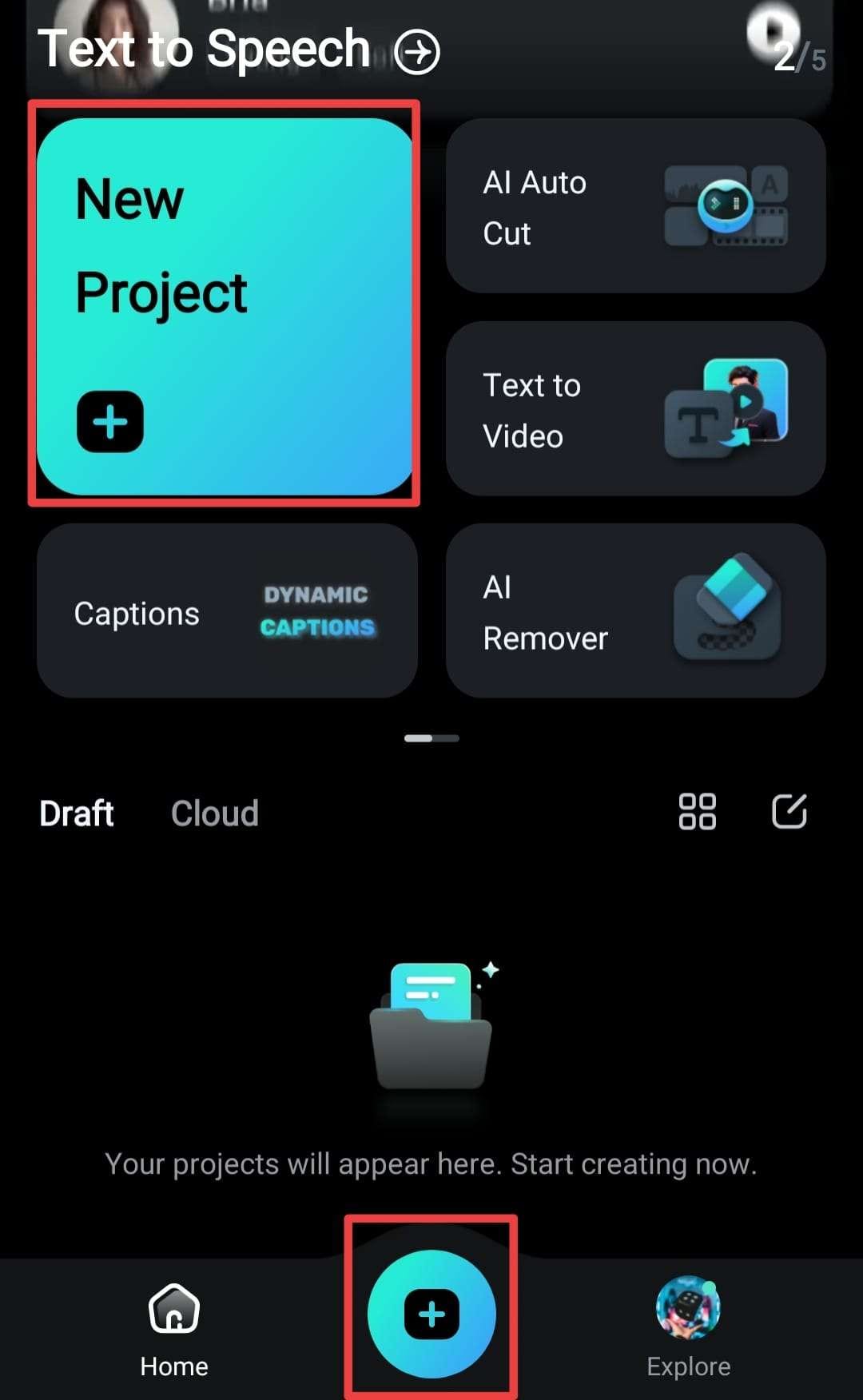
- Tap the New Project option from the Filmora app. You can also tap the blue + icon at the bottom of the screen.
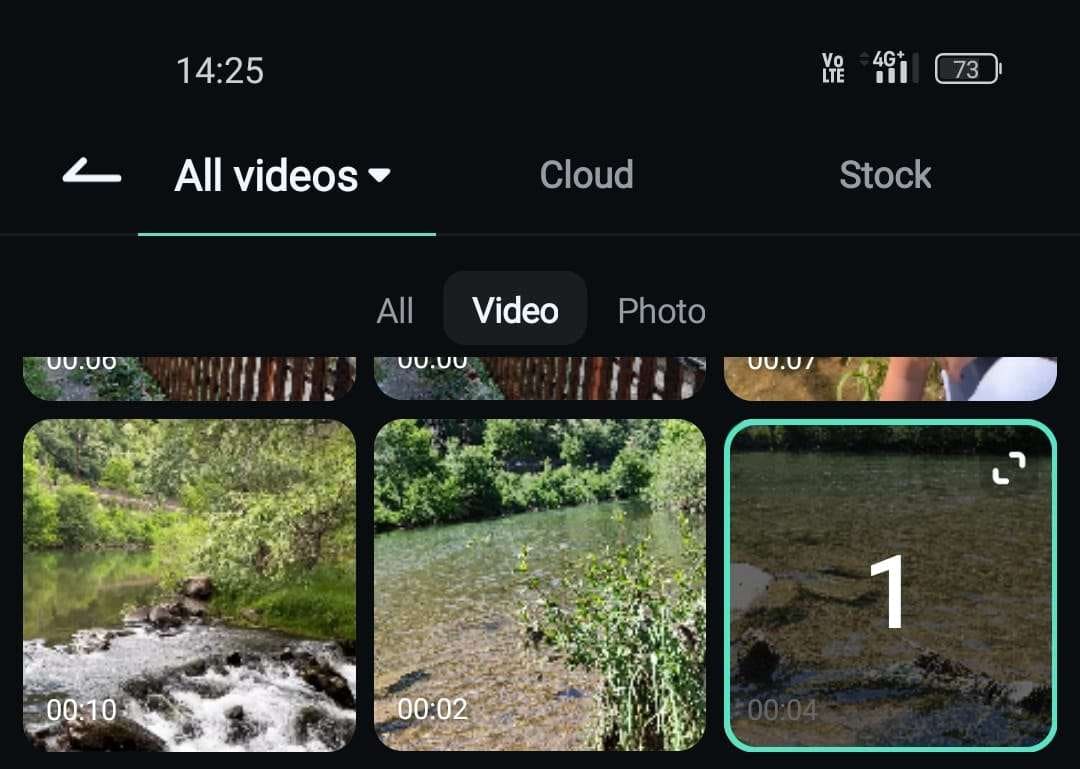
- Choose the desired video from your library.
Extract Audio
Once you import the video, follow the steps below to learn how to extract the audio track:
- Tap the Audio option from the Toolbar.
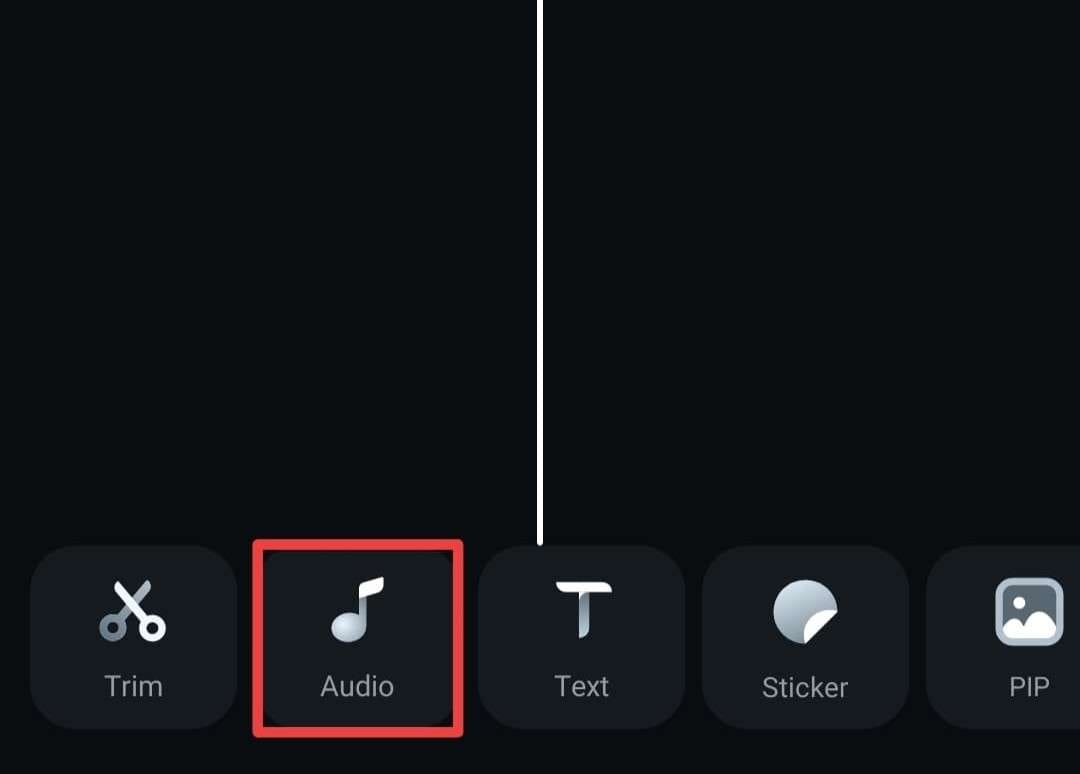
- Select Extract Audio from the same bar.
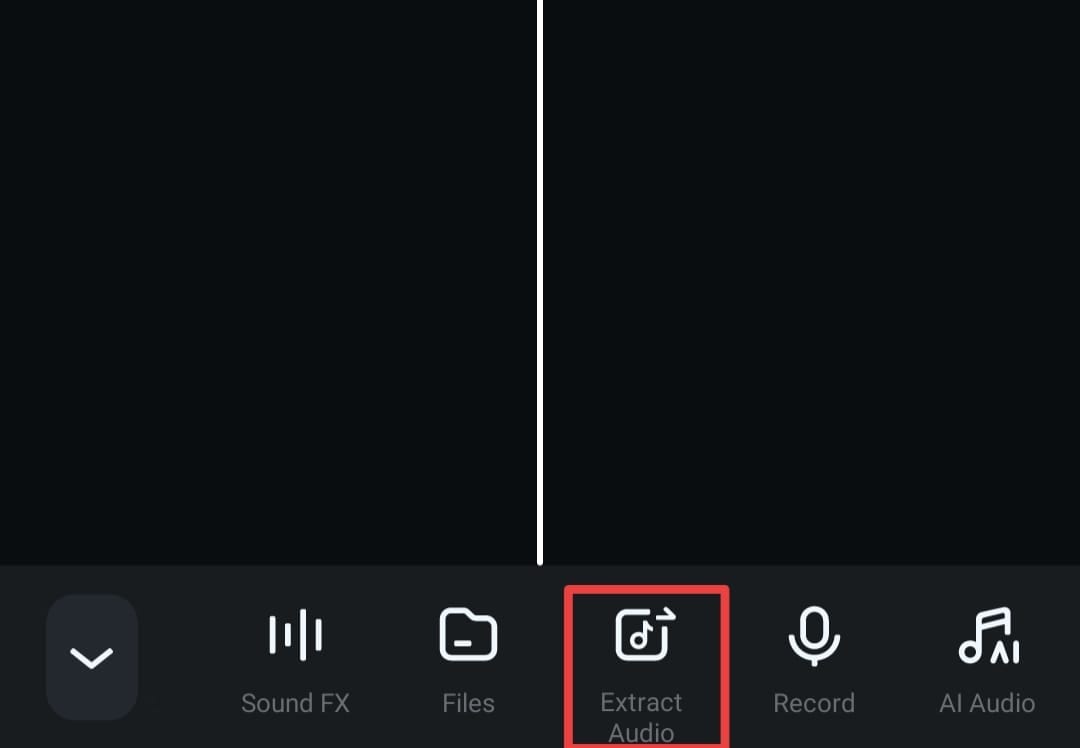
- Tap the Extract Audio button again in the next window.

- Select your audio track from the library.

Add Audio to the Timeline
After extracting the audio file, follow these steps to bring it to the timeline:
- Tap the Extract Audio option from the Toolbar.
- Tap the blue + icon next to the desired track.

This will automatically add the track to the timeline.
Conclusion
Extracting audio from your video recordings can come in handy during the editing process. You can manipulate your experience and start a professional audio experience. Wondershare Filmora provides one of the best and easiest extraction features on the market. You can get the full experience if you download the app to your mobile device.